Updated February 5, 2020:The issue seems related to Bing. We’ve updated our guide to fixing search related issues to include a partial fix and added the steps to the bottom of this article.
What you need to know
- Windows Search is down for several users.
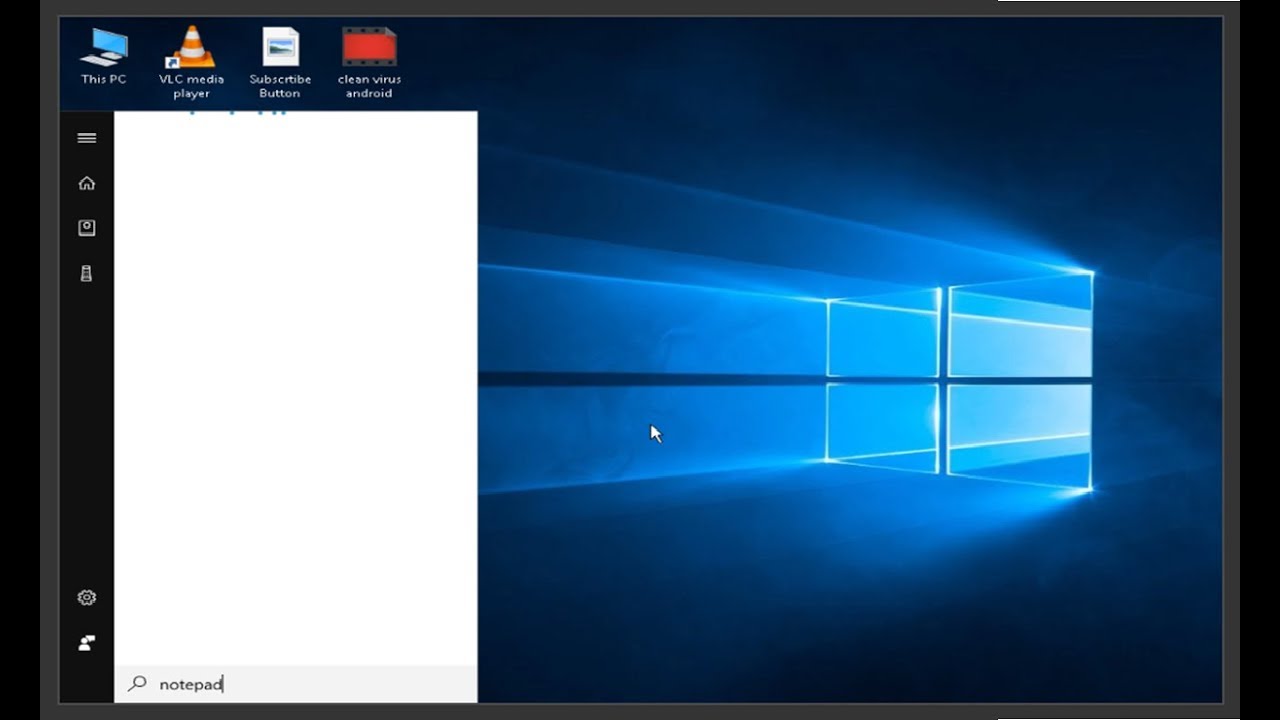
- The issue causes Windows Search to show a blank box and no search results.
- Microsoft recently issued an updated addressing search issues, though that may be unrelated.
Windows Search is down for many Windows 10 users. Reports on Reddit appeared recently with many people seeing nothing but a blank box inside Windows Search. One Reddit post states that the issue persits even after rebuilding the index of Windows Search. Another post says that online resources do not help.
Updated February 5, 2020:Microsoft has acknowledged the issue, stating that it should be resolved for most. You may have to restart your computer to correct the problem. For anyone still affected, Microsoft says that’s it is “working diligently to fully resolve the issue and will provide an update once resolved.”
With issues like these, it’s usually unclear how widespread the issue is, but based on how quickly discussion of the issue is travelling on Reddit, Discord, and Twitter, it appears this issue could be widespread. The issue currently affects my system, though that’s just one example of course. Many people online point out that several PCs they own see the same issue.
We’ve found a partial solution to this issue and update our guide on fixing search issues to include this current bug. The issue seems related to Bing, which you can disable with the following steps. Following these steps will show local search results, but will not show web results.
Remove Bing from your searches
In light of the recent Windows 10 Search issues where nothing is displayed in the bar or window, many have found a fix by disabling Bing integration. This does require working with RegEdit, so doing a backup of both your PC and its registry are recommended.
Once you’ve performed any necessary backups, run through these steps to get Search working again. Multiple people here at Windows Central have performed the same steps with success.
- Hit the Windows Key + R shortcut on your keyboard.
- Type regedit and hit Enter on your keyboard.
- Double-click HKEY_CURRENT_USER.
- Double-click SOFTWARE.
- Double-click Microsoft.
- Double-click Windows.
- Double-click CurrentVersion.
- Double-click Search.
- Right-click the right pane of the RegEdit window to bring up the menu.
- Click New.
- Click D-WORD (32-bit) Value.
- Type BingSearchEnabled and hit Enter on your keyboard.
- Double-click the BingSearchEnabled entry you just created.
- Type 0 in the Value data field. (It should already be 0 but make sure).
- Click OK.
- Double-click CortanaConsent.
- Type 0 in the data field. (It should also already be 0 but make sure).
- Click OK.
- Restart your PC.
This should bring Windows 10 Search back online.